# CLASSIC GENERAL 0.5.0 RC1
## Release Notes
Classic General 0.5.0 represents a major milestone in the development of the native Windows version of the classic Panzer General experience.
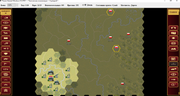
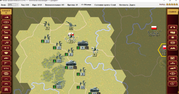
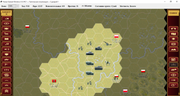
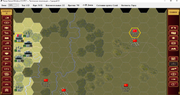
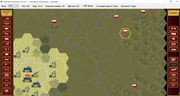
The game is now largely playable through the native Windows interface, with campaign and scenario gameplay, purchasing and deployment, transports, combat, AI-controlled opponents, sound effects, localization and many of the original game mechanics implemented.
Development is still ongoing, and version 0.5.0 should be considered an early public release. Some interface elements and presentation details are not yet final, but the majority of the user interface is functional.
---
## INTRO MOVIE
The introduction movie can be skipped at any time by pressing:
**ESC**
This immediately proceeds to the Classic General main menu.
---
## PURCHASING AND DEPLOYING UNITS
Newly purchased units are not placed directly onto the battlefield.
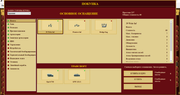
A purchased unit is added to the player's **Reserve Pool** and becomes available for deployment on the following turn.
Once the unit has been deployed, it immediately behaves as a normal battlefield unit and may perform its normal actions during that turn.
This system prevents newly purchased units from appearing instantly on the battlefield while still allowing them to participate normally as soon as they are deployed.
---
## GROUND TRANSPORT — MOUNT / DISMOUNT
Infantry and other eligible ground units equipped with an attached ground transport can mount and dismount during their turn.
The transport system allows several actions to be combined naturally within the same turn.
For example, a unit may:
**Attack → Mount → Move → Dismount**
or:
**Mount → Move → Dismount → Attack**
This allows transported units considerably more tactical flexibility while retaining the normal move-and-attack action system.
The Unit Menu identifies this command as:
**Land Transport Mount/Dismount**
---
## AIR TRANSPORT
Eligible units using air transport may perform the complete transport sequence during a single turn:
**Embark → Move → Disembark**
The Unit Menu identifies this command as:
**Air Transport Embark/Disembark**
This makes aircraft transport practical for moving units between suitable locations without requiring separate turns simply to board or leave the transport.
---
## NAVAL TRANSPORT
Naval transport controls are identified separately from land and air transport in the Unit Menu.
The command is displayed as:
**Naval Transport Embark/Disembark**
This distinction makes it clear which transport system is currently available to the selected unit.
---
## COMMAND CONSOLE
Press:
**CTRL+A**
during a scenario to open the Classic General command console.
The console is currently primarily intended as a development, testing and troubleshooting tool.
In version 0.5.0 it can be used to immediately complete the current scenario with a selected result:
* **Decisive Victory**
* **Marginal Victory**
* **Loss**
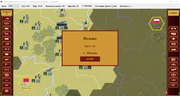
This is particularly useful for testing campaign progression, scenario transitions, victory branches and later campaign scenarios without having to play every preceding battle to completion.
Use of the command console is recorded in the diagnostic logs.
---
## DIAGNOSTIC AND LOG FILES
Classic General stores its diagnostic files outside the game installation directory.
The log folder is:
**%LOCALAPPDATA%\Panzer General Windows\Logs**
On a standard Windows installation this normally corresponds to:
**C:\Users<YourName>\AppData\Local\Panzer General Windows\Logs**
Keeping diagnostic data here prevents the game from attempting to write files into protected locations such as `Program Files`.
### Crash logs
Files beginning with:
**Crash_**
are generated when Classic General encounters an unexpected fatal or unhandled exception.
These logs contain information such as the game version, operating system, current game state, active screen, exception information and stack trace.
They are the most useful files to provide when reporting a crash.
### Error logs
Files beginning with:
**Error_**
record non-fatal exceptions and other detected errors.
The game may sometimes continue running after one of these errors, but the log can help identify features or operations that did not behave correctly.
### Hang logs
Files beginning with:
**Hang_**
are automatically created when the game detects that the user interface has remained unresponsive for approximately 15 seconds.
These logs record the last known game state and the UI operation that was in progress. They are useful when investigating freezes or apparent lock-ups even when the game does not actually crash.
### Command logs
Files beginning with:
**Command_**
record actions performed through the command console.
For example, using **CTRL+A** to force a scenario result records the command, selected result, scenario, turn, campaign status and active side.
### Sound log
The file:
**sound.log**
is used specifically for sound-system diagnostics.
It records which sound was configured for an action, which WAV file was selected, whether playback started successfully and any playback failures.
This is particularly useful when a movement, attack or interface sound is missing, incorrect or fails to play.
The sound log is stored in the same `%LOCALAPPDATA%\Panzer General Windows\Logs\` directory and is deliberately kept outside the installation folder.
Classic General automatically limits the number of retained diagnostic logs so obsolete log files do not accumulate indefinitely.
When reporting a problem, including the relevant log file together with a description of what happened can make diagnosing the issue considerably easier.
---
## USER INTERFACE STATUS
The Classic General user interface is **not yet completely finished**.
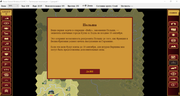
Most major menus, battlefield controls and gameplay functions are operational, but some screens, graphical elements, layouts, tooltips and presentation details may still receive further refinement.
Some areas therefore remain visually provisional even though their underlying functionality is already working.
Development will continue to improve consistency, presentation and usability in future versions.
---
##EQUIPMENT FILE
In the current RC1 equipment file there are 672 total equipment entries:
438 stock/permanent entries — IDs 0–437
234 custom/expansion entries — IDs 1000–1233
IDs 438–999 remain reserved and unused
---
Map movement:
WASD keys, left click+drag, edge scrolling
## VERSION 0.5.0 STATUS
Classic General 0.5.0 is intended as the first broadly usable release of the native Windows project rather than the final version of the game.
The focus of this release is to provide a functional Classic General experience while continuing to improve accuracy to the original game, AI behaviour, campaign systems, interface presentation, localization, sound, equipment data and overall stability.
Feedback and diagnostic logs from version 0.5.0 will be particularly valuable for further development.
## Quick Installation Guide
###
1. Run the installer
Start:
**ClassicGeneral_0.5.0_RC1_Setup.exe**
If Windows shows a security prompt, confirm that you want to run the installer.
###
2. Choose the installation folder
The installer will show the folder where Classic General will be installed.
The default location is normally under:
**C:\Program Files\Classic General**
You may choose another location if you prefer.
###
3. Choose the Saved Games folder
Classic General keeps saved games separate from the installation folder.
The installer allows you to choose this location independently.
Use a normal user-writable folder such as:
**Documents\Classic General\Saved Games**
###
4. Settings and diagnostic files
Game settings and diagnostic logs are stored separately under:
**%LOCALAPPDATA%\Panzer General Windows**
Logs are kept in:
**%LOCALAPPDATA%\Panzer General Windows\Logs**
These files are useful if you need to report a crash, freeze, sound problem, or other error.
###
5. Install
Check the installation summary and click **Install**.
The installer may create:
* a Start Menu shortcut;
* an optional Desktop shortcut.
###
6. Start Classic General
Launch **Classic General** from the Start Menu or Desktop shortcut.
The intro movie can be skipped at any time by pressing:
**ESC**
###
7. Select your language
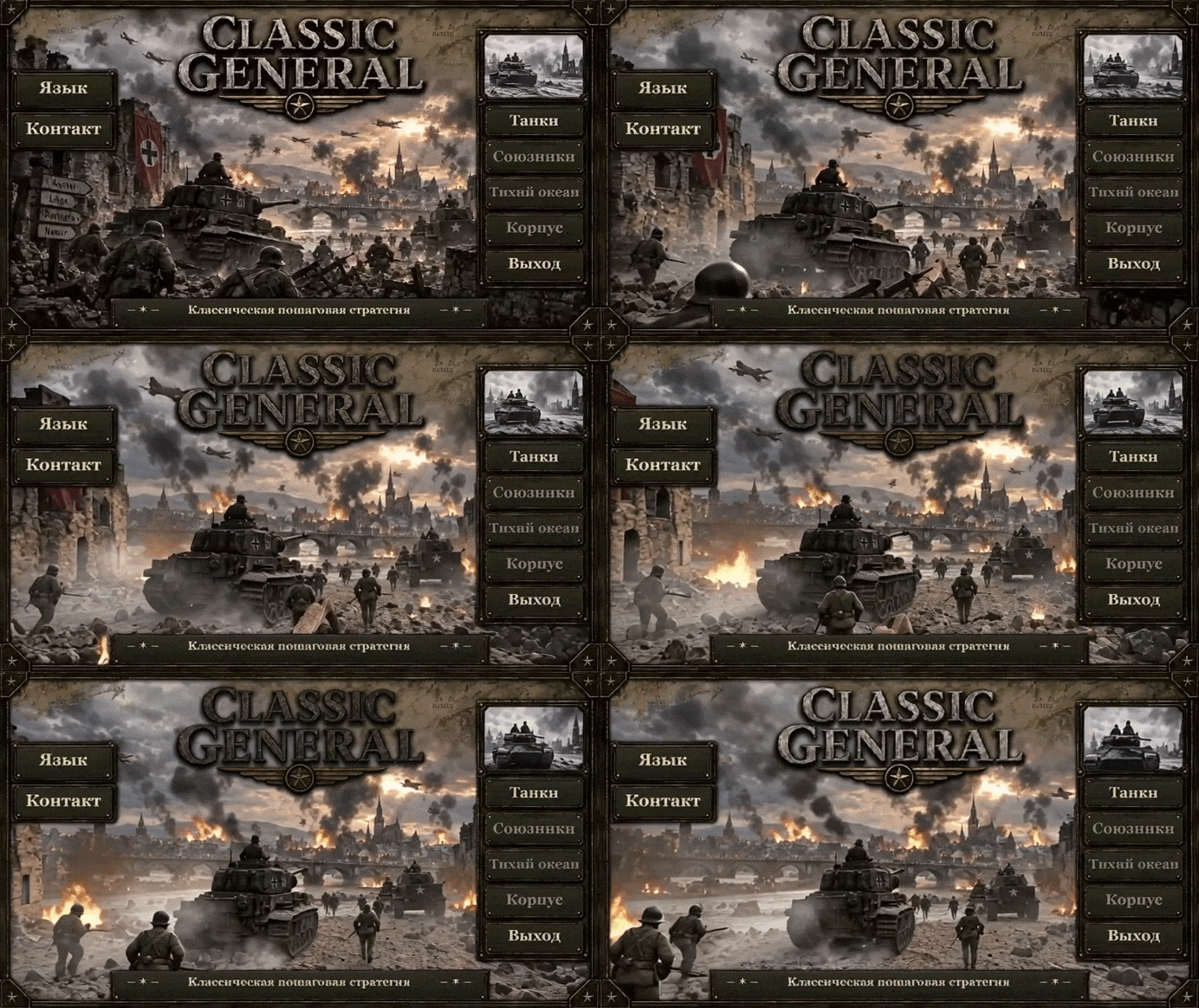
On the main screen, click:
**Language**
Classic General currently supports:
* English
* German
* French
* Polish
* Ukrainian
* Russian
* Spanish
* Turkish
###
8. Contact
The **Contact** button on the main screen opens your default email program and prepares a message to:
PanzerCorpsToolKit@proton.me
You can use this address for bug reports, feedback, and general questions.
---
##
Important RC1 note
Classic General 0.5.0 RC1 is a release candidate.
Most major gameplay systems are functional, but some interface elements and secondary features are still being refined.
The following are intentional RC1 limitations:
* Custom Campaign is not yet available.
* Structures cannot be purchased.
* Player naval Core units cannot be purchased.
These are planned for later development.
Download:
https://www.mediafire.com/file/vqpigrgg ... p.zip/file